Saturday, February 16, 2008

Saturday, February 02, 2008
Getting maimum performance in vista
This is an exerpt from the great book by Ed Bott, Windows Vista: Inside Out. Some more tips for getting the best performance out of your computer.
Windows Basics
Here is an article the has a bunch of links to beginner videos to help with the very basics of Windows.
Optimize Windows Vista for better permormance
Here is an interesting article from the Windows Home blog. Most of these tips also apply to other versions of Windows.
Tuesday, April 17, 2007
April 2006 Meeting Notes

Security
In April, Microsoft released several critical system updates for Windows XP and the first security update for Windows Vista. This is a reminder to go to http://windowsupdate.microsoft.com/ or turn on automatic updates if you have not updated Windows recently. Also, remember that there will be no more security updates for Windows 95, 98, and Me any more.
One of the items that was fixed was a vunlnerability in how Windows handles animated cursors. These are files that normally end in .ANI and they change your mouse cursor into a little mini movie. A specially crafted ANI file could allow an attacker to take over your computer. There were some web sites that were already using this technique to spread a worm virus using the animated cursor vulnerability, so Microsoft decided to release the fix early on April 3.
Windows Tip

Just like the website says, this free program gives you a detailed report of all the hardware, software, and security fixes you have installed on your PC. It will even tell you if you missed some security updates.
The program is small, just 1 MB, and you can download it from http://www.belarc.com/free_download.html. You will download a file called Advisor.exe. Just doulbe-click on this file to run it, and it installs itself and runs. The report will open up in Internet Explorer (but you do not need to be connected to the Internet, the web page is on your hard disk). You can print out this report for safe keeping, or if you happen to call for some tech support and they want to know more about the configuration of your computer.
Download of the Month: System Sound Effects
This month's featured download of the month is a set of sound files you can use to customize Windows. Windows comes with some sound built-in, but you can replace them with your own sounds, like the ones in this collection.
Copy the sound files to a folder in your computer. There is a folder called My Music that is a good place to put these files.
Then choose Start -> Control Panel, and choose Sound and Audio Devices. Choose the Sounds tab as shown in the picture:
You will see a list of Program Events. As you click on each event, a sound file will appear in the box beneath the list. Click on the little button with a right-facing arrow to play the sound to hear what it sounds like. To replace the sound with your own, click on the Browse... button and navigate to the "My Music" folder where you put the sound files. Choose one and click OK, then use the little play button to preview it. If you like it, go on and choose another event from the event list and choose a sound for that. When you are all done, click OK to close the Sounds and Audio Devices window.
Tuesday, December 19, 2006
December 2006 Meeting
This month's meeting will be held on December 19 starting at 7:00 PM, at the Canfield Presbyterian Church.
These are some of the items we will be talking about in our meeting:
News:
Doris will give a our financial report for the year
Web Sites:
And as always, we will attempt to answer your questions about Windows and computers in general. See you there!
These are some of the items we will be talking about in our meeting:
News:
Doris will give a our financial report for the year
Web Sites:
- Wikipedia: http://en.wikipedia.org -- Wikipedia is an encyclopedia collaboratively written by many of its readers. It uses a special type of website, called a wiki, that makes collaboration easy. Lots of people are constantly improving Wikipedia, making thousands of changes an hour, all of which are recorded on article histories and recent changes. Inappropriate changes are usually removed quickly, and repeat offenders can be blocked from editing.
- Windows SuperSite: http://www.winsupersite.com -- Paul Thurrott's SuperSite for Windows is dedicated to providing all of the information you need to evaluate important upcoming technologies, including Microsoft Windows, Windows Server, Office, and Xbox 360, plus related digital media, Internet and home networking, and competing technologies. This Web site provides continuous updates about these future products and technologies, while offering reviews, technology showcases, FAQs and other articles all designed to give you the information you need to decide which upcoming technologies are right for you. If it works with or competes with Windows, I'm probably looking into it.
- What is Bluetooth?
And as always, we will attempt to answer your questions about Windows and computers in general. See you there!
Monday, October 16, 2006
October 2006 meeting
This month's meeting will be held on October 17 starting at 7:00 PM, at the Canfield Presbyterian Church.
These are some of the items we will be talking about in our meeting:
-- Security: Take a bite out of cyber-crime with McGruff the crime dog at http://bytecrime.org.
-- Web Sites: Need a fix of TechTV? Try out the various shows you can download at http://twit.tv aka This Week in Tech.
-- Windows Tips: Turn on Auto-updates in Windows XP; How fast is that download going to take; using Google to find files that you are missing; Get the Adobe Reader to read PDF files at http://adobe.com.
And as always, we will attempt to answer your questions about Windows and computers in general. See you there!
These are some of the items we will be talking about in our meeting:
-- Security: Take a bite out of cyber-crime with McGruff the crime dog at http://bytecrime.org.
-- Web Sites: Need a fix of TechTV? Try out the various shows you can download at http://twit.tv aka This Week in Tech.
-- Windows Tips: Turn on Auto-updates in Windows XP; How fast is that download going to take; using Google to find files that you are missing; Get the Adobe Reader to read PDF files at http://adobe.com.
And as always, we will attempt to answer your questions about Windows and computers in general. See you there!
Sunday, September 17, 2006
September Meeting
This month's meeting will be held on September 19 starting at 7:00 PM, at
the Canfield Presbyterian Church.
Be sure to check out the web site for the latest updates:
http://mahccc.blogspot.com. Any suggestions for what we can put up there
will be very much appreciated.
These are some of the items we will be talking about in our meeting:
-- News: Apple announcements and Zune from Microsoft
-- Security: Flaws in Internet Explorer and D-Link Routers
-- Web Sites: Lou Dobbs and the EFF are looking out for you
-- Windows Tips: To be determined
-- Advanced: SanDisk Sansa MP3 Player
the Canfield Presbyterian Church.
Be sure to check out the web site for the latest updates:
http://mahccc.blogspot.com. Any suggestions for what we can put up there
will be very much appreciated.
These are some of the items we will be talking about in our meeting:
-- News: Apple announcements and Zune from Microsoft
-- Security: Flaws in Internet Explorer and D-Link Routers
-- Web Sites: Lou Dobbs and the EFF are looking out for you
-- Windows Tips: To be determined
-- Advanced: SanDisk Sansa MP3 Player
Monday, June 19, 2006
June 20 Meeting
This month's meeting will be held on June 20 starting at 7:00 PM, at the Canfield Presbyterian Church.
Be sure to check out the web site for the latest updates: http://mahccc.blogspot.com. Any suggestions for what we can put up there will be very much appreciated.
These are some of the items we will be talking about in our meeting:
Be sure to check out the web site for the latest updates: http://mahccc.blogspot.com. Any suggestions for what we can put up there will be very much appreciated.
These are some of the items we will be talking about in our meeting:
- Security: Security hole in Win 98 and ME will go unfixed
- Windows Tips: uninstalling programs, printing web pages, using the links bar in Internet Explorer
- Favorite web sites: digg.com
- More Advanced: using iTunes
And as always, we will attempt to answer your questions about Windows and computers in general. See you there!
Sunday, March 19, 2006
March Meeting
This month's meeting will be held on March 21 starting at 7:00 PM, at the Canfield Presbyterian Church.
These are some of the items we will be talking about in our meeting:
And as always, we will attempt to answer your questions about Windows and computers in general. See you there!
Enabling/Disabling Cookies
--------------------------
In Internet Explorer:
In Firefox:
To Save a Picture from a web site:
To Set Your Background Picture
PDF = Portable Document Format
PDF files are created by Adobe Acrobat (not a free program).
The Adobe Reader is free, you can download it at
http://www.adobe.com/products/acrobat/readstep2.html.
Once you install Adobe Reader, you can open, read, and print PDF files. Some web sites offer information in the form of PDF files. The IRS has all of the tax forms available online as PDF files, for example.
http://www.webshots.com - Photo sharing, Free Wallpaper and Free Screensavers.
http://www.dealtime.com - Price Comparison, Store & Product Reviews
http://familywatchdog.us - National Sex Offender Registry
http://123greetings.com - Free Greeting Cards, Free Ecards
http://kraftfoods.com/share - Free Issues of Food&Family magazine
http://webMD.com - Health Information Online
Items from Microsoft At Home and At Work Newsletter:
---------------------------------------------------------
Put your PC maintenance routine on autopilot
Set up an automated PC maintenance schedule
<http://go.microsoft.com/?linkid=4656227> to keep your computer working its
best. Learn to automate the weekly cleaning of your hard disk, rearrange
fragmented files monthly, and check your hard disk weekly for errors.
----------------------------------------------------------------------
Good to know
Try Office Live: Tools and resources to manage your small business
<http://go.microsoft.com/?linkid=4656200>
Large companies have secure file-sharing sites, robust Web sites, and all
the tools that they need to run their businesses. How can your small
business compete? With Microsoft Office Live--that's how!
Search and win with MSN Search (U.S.)
<http://go.microsoft.com/?linkid=4656201>
The more you search, the more you win. Simply search using MSN and you could
instantly win one of many prizes, from a one-year subscription to Netflix to
a Vespa Granturismo scooter.
Get a great deal when you buy local (U.S.)
<http://go.microsoft.com/?linkid=4656202>
Get up to $1,200 in valuable offers with the Buy Local Bonus Pack. Simply
buy a PC with a genuine Windows XP operating system from your local PC
builder, validate your purchase, and redeem your offers.
----------------------------------------------------------------------
Be more productive
Give better PowerPoint presentations with a Tablet PC
<http://go.microsoft.com/?linkid=4656203>
Giving a presentation can be both exciting and nerve-wracking. In this
article, you'll learn how to keep your audience's attention by using the
interactive features of a Tablet PC and Microsoft PowerPoint.
5 tips to improve your kids' study habits
<http://go.microsoft.com/?linkid=4656204>
Many students have awakened in a cold sweat as a result of an upcoming test,
forgotten assignment, or subpar report card. Here are some tips and tools to
help your child get good grades and a little peace of mind.
----------------------------------------------------------------------
Have more fun
Express yourself with Microsoft templates
<http://go.microsoft.com/?linkid=4656206>
Everyone has a unique personality, but we don't always have the time or the
know-how to express ourselves, particularly through computer applications.
Here are some ideas on how to use templates to show your creativity on the
PC.
Take your online communication to new heights
<http://go.microsoft.com/?linkid=4656207>
Do you use instant messaging (IM)? Take your IM beyond simple text chats
with advanced features in Windows Messenger, including voice and video chat,
photo sharing, and real-time collaboration on documents.
----------------------------------------------------------------------
Set up and maintain your computer
Avoid panicky crabbiness: Back up your Outlook information
<http://go.microsoft.com/?linkid=4656209>
There are easier ways to back up your Microsoft Outlook information than by
dragging messages to a folder or retyping contact information. The Crabby
Office Lady shows you how to use Archive Folders and Personal Folders.
Basics for safer downloading <http://go.microsoft.com/?linkid=4656210>
Protecting your computer from the potential dangers of downloading takes a
bit of caution and strict adherence to the rule: "When in doubt, save before
you download." Find out how you can address safety risks when downloading
files.
----------------------------------------------------------------------
TipTalk
· Get rid of unused programs on your computer
<http://go.microsoft.com/?linkid=4656212>
· Customize your Start menu <http://go.microsoft.com/?linkid=4656213>
· TipTalk Home <http://go.microsoft.com/?linkid=4656214>
----------------------------------------------------------------------
Hot downloads
· Celebrate St. Patrick's Day with fun clip art
<http://go.microsoft.com/?linkid=4656215>
· Protect Internet Explorer 6 with Service Pack 1
<http://go.microsoft.com/?linkid=4656216>
· Download Digital Photography Fun Pack for Windows XP
<http://go.microsoft.com/?linkid=4656217>
----------------------------------------------------------------------
Security updates
· Download security updates for Windows and Office released March 14
<http://go.microsoft.com/?linkid=4656218>
· Get updates for Windows, Office, and other Microsoft software
<http://go.microsoft.com/?linkid=4656219>
· Keep Office up to date with Office Update
<http://go.microsoft.com/?linkid=4656220>
----------------------------------------------------------------------
Other resources
· At Home site <http://go.microsoft.com/?linkid=4656221>
· At Work site <http://go.microsoft.com/?linkid=4656222>
----------------------------------------------------------------------
Other newsletters
· Security Newsletter for Home Users: Tips for home PCs
<http://go.microsoft.com/?linkid=4656223>
· Exploring Windows: Latest news and tips for Windows XP
<http://go.microsoft.com/?linkid=4656224>
· Inside Office: Tricks and advice for working efficiently in Office
<http://go.microsoft.com/?linkid=4656225>
· TechNet Flash: News and information for technical pros
<http://go.microsoft.com/?linkid=4656226>
These are some of the items we will be talking about in our meeting:
- Security: Enabling/Disabling Cookies
- Customizing Windows: Setting your background image, making things easier to read
- Adobe PDF files
- Web Sites
And as always, we will attempt to answer your questions about Windows and computers in general. See you there!
Meeting Notes:
SecurityEnabling/Disabling Cookies
--------------------------
In Internet Explorer:
- Start Internet Explorer if it isn't already running, choose Internet Options from the Tools menu. Click on the Privacy tab.
- Click the Advanced button
- Check the box "Override automatic cookie handling"
- Choose to accept or block First- and Third-party Cookies. My reccommendation is to accept First-party Cookies, block third-party cookies, and always allow session cookies.
- Click OK to save your custom cookie settings.
- If there are specific sites for which you want to either allow or block cookies, click the Sites button.
- Type or paste in the web site's address.
- Click either the Block or Allow buttons to always block or always allow cookies from this site.
- Click OK.
- Click OK to close the Internet Options window.
In Firefox:
- Start Firefox if it isn't already running, choose Options from the Tools menu. Click on the Privacy icon on the tool bar.
- Click on the Cookies tab.
- To block all cookies, clear the box next to "Allow sites to set Cookies." Otherwise check it to allow cookies. Check "for the originating site only" to block third-party cookies.
- If there are specific sites that are exceptions to these rules, click the Exceptions button.
- Type or paste in the web site's address.
- Click either Block or Allow to block or allow cookies for this site.
- Click Close.
- Click Ok to close the Options window.
Desktop pictures
To Save a Picture from a web site:
- Right-click the picture, choose "Save Picture As..." from the menu.
- In the Save Picture Window, change the "Save In" box to "My Pictures" or any other folder where you want to keep pictures.
- Click the Save button.
To Set Your Background Picture
- Right-click a blank spot on the desktop, choose Properties from the shortcut menu, and click the Desktop tab of the Display Properties dialog box.
- In the Background list, click the name of the picture you want, or...
- Click "Browse..." to open a window to choose the picture you want. Change the "Look In" box to the "My Pictures" folder, or the folder where you store your pcitures. Click on the picture you want and click Open.
- Back in the Display Properties window, choose an option from the Position list: "Center" will place a single copy of the picture in the center of the desktop, "Tile" to repeat the picture to fill the desktop, "Stretch" to scale the image to fit the desktop.
- Click Ok to close the Display Properties window.
Customize Windows for easier viewing
- Right-click a blank spot on the desktop, choose Properties from the shortcut menu, and click the Appearance tabe of the Display Properties dialog box.
- The first drop-down box "Windows and Buttons" lets you choose between the Classic Windows look or the new XP look.
- Under the XP style, you only have three different color schemes. Under the classic style you have a lot more choices.
- Choose a larger font size to make things easier to read.
PDF files
PDF = Portable Document Format
PDF files are created by Adobe Acrobat (not a free program).
The Adobe Reader is free, you can download it at
http://www.adobe.com/products/acrobat/readstep2.html.
Once you install Adobe Reader, you can open, read, and print PDF files. Some web sites offer information in the form of PDF files. The IRS has all of the tax forms available online as PDF files, for example.
Web Sites
http://www.webshots.com - Photo sharing, Free Wallpaper and Free Screensavers.
http://www.dealtime.com - Price Comparison, Store & Product Reviews
http://familywatchdog.us - National Sex Offender Registry
http://123greetings.com - Free Greeting Cards, Free Ecards
http://kraftfoods.com/share - Free Issues of Food&Family magazine
http://webMD.com - Health Information Online
Items from Microsoft At Home and At Work Newsletter:
---------------------------------------------------------
Put your PC maintenance routine on autopilot
Set up an automated PC maintenance schedule
<http://go.microsoft.com/?linkid=4656227> to keep your computer working its
best. Learn to automate the weekly cleaning of your hard disk, rearrange
fragmented files monthly, and check your hard disk weekly for errors.
----------------------------------------------------------------------
Good to know
Try Office Live: Tools and resources to manage your small business
<http://go.microsoft.com/?linkid=4656200>
Large companies have secure file-sharing sites, robust Web sites, and all
the tools that they need to run their businesses. How can your small
business compete? With Microsoft Office Live--that's how!
Search and win with MSN Search (U.S.)
<http://go.microsoft.com/?linkid=4656201>
The more you search, the more you win. Simply search using MSN and you could
instantly win one of many prizes, from a one-year subscription to Netflix to
a Vespa Granturismo scooter.
Get a great deal when you buy local (U.S.)
<http://go.microsoft.com/?linkid=4656202>
Get up to $1,200 in valuable offers with the Buy Local Bonus Pack. Simply
buy a PC with a genuine Windows XP operating system from your local PC
builder, validate your purchase, and redeem your offers.
----------------------------------------------------------------------
Be more productive
Give better PowerPoint presentations with a Tablet PC
<http://go.microsoft.com/?linkid=4656203>
Giving a presentation can be both exciting and nerve-wracking. In this
article, you'll learn how to keep your audience's attention by using the
interactive features of a Tablet PC and Microsoft PowerPoint.
5 tips to improve your kids' study habits
<http://go.microsoft.com/?linkid=4656204>
Many students have awakened in a cold sweat as a result of an upcoming test,
forgotten assignment, or subpar report card. Here are some tips and tools to
help your child get good grades and a little peace of mind.
----------------------------------------------------------------------
Have more fun
Express yourself with Microsoft templates
<http://go.microsoft.com/?linkid=4656206>
Everyone has a unique personality, but we don't always have the time or the
know-how to express ourselves, particularly through computer applications.
Here are some ideas on how to use templates to show your creativity on the
PC.
Take your online communication to new heights
<http://go.microsoft.com/?linkid=4656207>
Do you use instant messaging (IM)? Take your IM beyond simple text chats
with advanced features in Windows Messenger, including voice and video chat,
photo sharing, and real-time collaboration on documents.
----------------------------------------------------------------------
Set up and maintain your computer
Avoid panicky crabbiness: Back up your Outlook information
<http://go.microsoft.com/?linkid=4656209>
There are easier ways to back up your Microsoft Outlook information than by
dragging messages to a folder or retyping contact information. The Crabby
Office Lady shows you how to use Archive Folders and Personal Folders.
Basics for safer downloading <http://go.microsoft.com/?linkid=4656210>
Protecting your computer from the potential dangers of downloading takes a
bit of caution and strict adherence to the rule: "When in doubt, save before
you download." Find out how you can address safety risks when downloading
files.
----------------------------------------------------------------------
TipTalk
· Get rid of unused programs on your computer
<http://go.microsoft.com/?linkid=4656212>
· Customize your Start menu <http://go.microsoft.com/?linkid=4656213>
· TipTalk Home <http://go.microsoft.com/?linkid=4656214>
----------------------------------------------------------------------
Hot downloads
· Celebrate St. Patrick's Day with fun clip art
<http://go.microsoft.com/?linkid=4656215>
· Protect Internet Explorer 6 with Service Pack 1
<http://go.microsoft.com/?linkid=4656216>
· Download Digital Photography Fun Pack for Windows XP
<http://go.microsoft.com/?linkid=4656217>
----------------------------------------------------------------------
Security updates
· Download security updates for Windows and Office released March 14
<http://go.microsoft.com/?linkid=4656218>
· Get updates for Windows, Office, and other Microsoft software
<http://go.microsoft.com/?linkid=4656219>
· Keep Office up to date with Office Update
<http://go.microsoft.com/?linkid=4656220>
----------------------------------------------------------------------
Other resources
· At Home site <http://go.microsoft.com/?linkid=4656221>
· At Work site <http://go.microsoft.com/?linkid=4656222>
----------------------------------------------------------------------
Other newsletters
· Security Newsletter for Home Users: Tips for home PCs
<http://go.microsoft.com/?linkid=4656223>
· Exploring Windows: Latest news and tips for Windows XP
<http://go.microsoft.com/?linkid=4656224>
· Inside Office: Tricks and advice for working efficiently in Office
<http://go.microsoft.com/?linkid=4656225>
· TechNet Flash: News and information for technical pros
<http://go.microsoft.com/?linkid=4656226>
Tuesday, February 21, 2006
MCCC February 2006 Meeting
Mouse Tips
- When you see directions to “click”, “double-click”, “select”, or “drag” use the left mouse button.
- Directions to use a “right-click” or “right-drag” of course use the right mouse button.
- Shift-click selects a range quickly: 1. Select the first item in the list, 2. Shift-click the last item in the list, everything in-between is selected.
- Ctrl-click selects non-contiguous items.
To use the wheel panning feature, follow these steps:
- Open a window with active scroll bars.
- Press the wheel button. The pointer changes to a single arrow or multiple arrows that point in the directions you can pan.
- Move the mouse in the direction you want to pan.
- When you are finished panning, press the wheel button again to turn off the panning feature.
The Windows XP Desktop
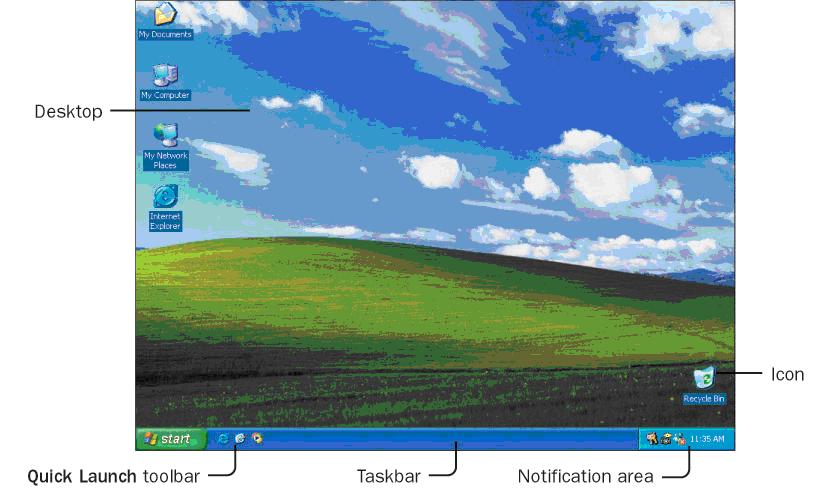
Parts of a window

The Windows XP Start Menu

Sunday, December 18, 2005
December 2005 Meeting
**** RANDOM ACCESS ****
THE MCCC NEWSLETTER
Electronic Edition
December 2005
In This Issue:
* Meeting is Tuesday, December 20
* Starting Windows 98 in Safe Mode
* Starting Windows XP in Safe Mode
======================================
1. Special Announcements
======================================
Remember to check http://windowsupdate.microsoft.com for important security
updates the second Tuesday of every month.
======================================
2. This Month's Meeting
======================================
This month's meeting will be held on December 30 starting at 7:00 PM, at the
Canfield Presbyterian Church.
Be sure to check out the web site for the latest updates:
http://mahccc.blogspot.com. Any suggestions for what we can put up there
will be very much appreciated.
These are some of the items we will be talking about in our meeting:
-- Starting in Safe Mode to troubleshoot problems. This is not something I
recommend to everyone. Restarting in safe mode is usually used when you
cannot start your system any other way. To figure out what is wrong can
take a long time. For the gory details about Windows 98, check out this
article: http://support.microsoft.com/default.aspx?scid=kb;EN-US;Q188867.
I've included parts of this article below. In Windows XP, things are a bit
easier since you can use the System Restore utility to bring your computer
back to a state when it was working. We'll talk about this more and I'll
try to answer your questions.
-- Windows XP feature to resize pictures to send in email
-- Why buy an iPod?
And as always, we will attempt to answer your questions about Windows and
computers in general. See you there!
Since it is our last meeting of the year, I'll be bringing some cookies and
our Vice-President will be bringing some coffee for our Christmas party. If
you want to bring some cookies or treats, bring them along! If I don't see
you at the meeting, then have a Merry Christmas and a Happy New Year!
======================================
3. Articles
======================================
Start Windows 98 in Safe Mode
----------------------------------
If Windows 98 does not start normally, try to start it in Safe mode.
Starting Windows 98 in Safe mode bypasses the current real-mode
configuration and loads a minimal protected-mode configuration, disabling
Windows 98 device drivers and using the standard VGA display adapter. To
start Windows 98 in Safe mode, restart your computer, press and hold down
the CTRL key until the Windows 98 Startup menu appears, and then choose Safe
Mode.
If Windows 98 starts in Safe mode, step through the startup process to see
if any devices do not load properly:
1. Click Start, click Run, type msconfig in the Open box, and then click OK.
2. Click Selective Startup.
3. Try different boot options.
Start Windows XP in Safe Mode
----------------------------------
To access safe mode
1.. Remove all floppy disks and CDs from your computer, and restart your
computer.
2.. Press F8 when prompted.
If Windows XP starts without displaying the safe mode menu, restart your
computer and try again. Press F8 after the firmware POST process completes
(while the comptuer is black-and-white mode) but before Windows XP displays
graphical output (before it goes into color mode).
3.. On the Windows Advanced Options menu, select Safe Mode, Safe Mode with
Networking, or Safe Mode with Command Prompt.
You can also select a safe mode option from the startup recovery menu that
appears when Windows XP Professional detects that the startup attempt was
unsuccessful.
======================================
4. Upcoming Events
======================================
Let us know of any upcoming events!
======================================
5. Contacts
======================================
Club officers:
--------------
Joseph Maruschek--President/Editor
email: jmaruschek@hotmail.com
phone: 757-2101
Dick Wilson--Vice President
email: tagalong5@juno.com
phone: 799-1676
Doris Baker--Treasurer/Membership
email: doris@cboss.com
phone: 792-5650
Pam Sullivan--Secretary
email: sullivan@cboss.com
phone: 533-9598
Beth Sullivan--Ways & Means
email: sullivan@cboss.com
phone: 533-9598
Articles for the newsletter must be submitted to the editor by the 2nd
Tuesday of the month.
THE MCCC NEWSLETTER
Electronic Edition
December 2005
In This Issue:
* Meeting is Tuesday, December 20
* Starting Windows 98 in Safe Mode
* Starting Windows XP in Safe Mode
======================================
1. Special Announcements
======================================
Remember to check http://windowsupdate.microsoft.com for important security
updates the second Tuesday of every month.
======================================
2. This Month's Meeting
======================================
This month's meeting will be held on December 30 starting at 7:00 PM, at the
Canfield Presbyterian Church.
Be sure to check out the web site for the latest updates:
http://mahccc.blogspot.com. Any suggestions for what we can put up there
will be very much appreciated.
These are some of the items we will be talking about in our meeting:
-- Starting in Safe Mode to troubleshoot problems. This is not something I
recommend to everyone. Restarting in safe mode is usually used when you
cannot start your system any other way. To figure out what is wrong can
take a long time. For the gory details about Windows 98, check out this
article: http://support.microsoft.com/default.aspx?scid=kb;EN-US;Q188867.
I've included parts of this article below. In Windows XP, things are a bit
easier since you can use the System Restore utility to bring your computer
back to a state when it was working. We'll talk about this more and I'll
try to answer your questions.
-- Windows XP feature to resize pictures to send in email
-- Why buy an iPod?
And as always, we will attempt to answer your questions about Windows and
computers in general. See you there!
Since it is our last meeting of the year, I'll be bringing some cookies and
our Vice-President will be bringing some coffee for our Christmas party. If
you want to bring some cookies or treats, bring them along! If I don't see
you at the meeting, then have a Merry Christmas and a Happy New Year!
======================================
3. Articles
======================================
Start Windows 98 in Safe Mode
----------------------------------
If Windows 98 does not start normally, try to start it in Safe mode.
Starting Windows 98 in Safe mode bypasses the current real-mode
configuration and loads a minimal protected-mode configuration, disabling
Windows 98 device drivers and using the standard VGA display adapter. To
start Windows 98 in Safe mode, restart your computer, press and hold down
the CTRL key until the Windows 98 Startup menu appears, and then choose Safe
Mode.
If Windows 98 starts in Safe mode, step through the startup process to see
if any devices do not load properly:
1. Click Start, click Run, type msconfig in the Open box, and then click OK.
2. Click Selective Startup.
3. Try different boot options.
Start Windows XP in Safe Mode
----------------------------------
To access safe mode
1.. Remove all floppy disks and CDs from your computer, and restart your
computer.
2.. Press F8 when prompted.
If Windows XP starts without displaying the safe mode menu, restart your
computer and try again. Press F8 after the firmware POST process completes
(while the comptuer is black-and-white mode) but before Windows XP displays
graphical output (before it goes into color mode).
3.. On the Windows Advanced Options menu, select Safe Mode, Safe Mode with
Networking, or Safe Mode with Command Prompt.
You can also select a safe mode option from the startup recovery menu that
appears when Windows XP Professional detects that the startup attempt was
unsuccessful.
======================================
4. Upcoming Events
======================================
Let us know of any upcoming events!
======================================
5. Contacts
======================================
Club officers:
--------------
Joseph Maruschek--President/Editor
email: jmaruschek@hotmail.com
phone: 757-2101
Dick Wilson--Vice President
email: tagalong5@juno.com
phone: 799-1676
Doris Baker--Treasurer/Membership
email: doris@cboss.com
phone: 792-5650
Pam Sullivan--Secretary
email: sullivan@cboss.com
phone: 533-9598
Beth Sullivan--Ways & Means
email: sullivan@cboss.com
phone: 533-9598
Articles for the newsletter must be submitted to the editor by the 2nd
Tuesday of the month.
Tuesday, November 15, 2005
November Meeting
MCCC November 2005
Types of Spyware
The term “spyware” covers a wide range of malicious software (sometimes called malware). Your anti-spyware tool will find all sorts of things that it considers spyware to be removed. Here is a small field guide to what you might find.
COOKIES
These are small text files placed on your computer via your browser by a web site. They are used to track website usage, remember settings, track ad views and make ecommerce shopping carts work. Cookies can’t crash your computer and don’t slow it down at all. Don’t be concerned if cookies are detected. They are a normal result of using the web. If you are concerned about privacy, you can have them deleted.
ALEXA
This is an Amazon.com owned web browser plug-in that gives you data about site popularity. However it also tracks your web usage and reports it back to a central server. It declares what it does and is not really a spyware threat. You don’t have to remove it if detected. If concerned you can uninstall it with the included uninstaller that comes with Alexa.
GATOR/CLARIA
Gator (renamed Claria) almost invented spyware. It has made efforts over the years to legitimize it business, by declaring what info it gathers on your computer as you use its software. Microsoft AntiSpyware is recommending that it be ignored. If you get utility out of Claria and are ok with your web habits being anonymously reported then leave it.
AD SUPPORTED
Some companies - like Claria - release software that is free in return for allowing information to be gathered about you. It explicitly states this upfront in the user agreement. Even though it is painful, scan user agreements of free software that you download to see if they are going to install other programs to show ads. Just about all free programs offer a paid version that has no ads. Removing the ad software may cause the free software to stop working.
BROWSER HIJACK
Also called Browser Helper Objects, these are the nastiest pieces of spyware going. They install on a browser either locking the homepage so it can’t be changed from the one it is set to by the hijacker or installs an un-removable toolbar. Sometimes browser helpers are truly helpful, so keep ones that you actually use. It certainly needs to be removed if your homepage is set to something inappropriate. It is sometimes very hard to do and often requires the use of the program Hijack This. Users of Windows XP with Service Pack 2 installed can see what browser helpers are installed and can turn them off.
More Spyware tips:
- It has been shown time and again that no one anti-spyware program finds and removes everything. Try using more than one program to detect and clean out a heavily-infected computer.
- Some anti-spyware programs, like the free version of Ad-Aware, don’t have a part that tries to prevent you from getting infected. It only detects and removes infections.
Free Anti-Spyware
- Ad-Aware Personal 1.06: http://www.lavasoftusa.com/software/adaware/
- Spybot – Search & Destroy 1.4: http://spybot.safer-networking.de/en/sybotsd/
- Microsoft AntiSpyware (Beta version), soon to be Windows Defender: http://www.microsoft.com/athome/security/spyware/software/default.mspx
More Shortcut Keys
Did you ever get a window stuck where the title bar was off the top edge of the screen so you couldn’t reach it with your mouse to move? Use the keyboard to move your window, even if you can’t get to the system menu with your mouse:
- Hold down Alt and the Spacebar and then release. You’ll see the system menu appear.
- Press the M key to select Move from the menu
- Use the arrow keys to move the window.
- Press Enter when you are finished moving the window.
Make your own shortcut keys! You can assign shortcut keys to your favorite programs so you can start them quickly without having to go to the Start menu.
- For example, let’s make a shortcut key for the Calculator. Find the Calculator on the start menu (it’s under accessories) and right-click it.
- Choose Properties from the pop-up menu
- Click once in the Shortcut Key box, and press the C key. You’ll note that “Ctrl + Alt + C” appears in the box. All of these shortcuts will start with Ctrl + Alt.
- Click OK to save your change.
- You can press the combination Ctrl + Alt + C and the Calculator appears.
Free Programming Tools
Ever wonder were programs come from? You can make your own programs using free tools from Microsoft. They recently released free versions of their Visual Studio product called Visual Studio Express. Go to http://msdn.microsoft.com/vstudio/express for more information and downloads.
Now that you’ve got some free tools, what should you program? Get some ideas and guidance from the Coding4Fun site at: http://msdn.microsoft.com/coding4fun.
October Meeting
MCCC October 2005
What is Windows Update? http://windowsupdate.microsoft.com
Windows Update is a Microsoft web site that provides updates for Windows operating system software and Windows-based hardware. Updates address known issues and help protect against known security threats.
How does it work?
- Connect to the internet.
- Open Internet Explorer.
- In the Address box type: http://windowsupdate.microsoft.com and press Enter.
- The web site changes from time to time, so follow the instructions on the screen.
When you visit the web site, Windows Update scans your computer and tells you which updates apply to your software and hardware. You choose the updates that you want to and how to install them.
What types of updates can I get?
Windows Update uses these categories:
- High Priority: Critical updates, security updates, service packs, and update rollups that should be installed as soon as they become available and before you install any other updates.
- Software (optional): Non-critical fixes for Windows programs, such as Windows Media Player and Windows Journal Viewer.
- Hardware (optional): Non-critical fixes for drivers and other hardware devices, such as video cards, sound cards, scanners, printers, and cameras.
What’s the difference between Express and Custom?
- Express (recommended) displays all high priority updates for your computer so that you can install them with one click. This is the quickest and easiest way to keep your computer up to date.
- Custom displays high priority and optional updates for your computer. You review and select the updates that you want to install, one by one.
Using Security Zones in Internet Explorer
- Go to the web site you want to add to a zone
- Press Alt-D to select the web address, and press Ctrl-C to copy it to the Windows Clipboard. This saves you from having to type it in later.
- On the Internet Explorer Tools menu, click Internet Options.
- Click the Security tab, and then click the security zone where you want to add the site: Local Intranet, Trusted sites, or Restricted sites.
- Click the Sites button.
- In the Add this Web site to the zone box, press Ctrl-V to paste in the web address.
- Click the Add button.
- If you want to add more sites to this zone now, you can go back to step 6 and type any additional web addresses into the Add this Web site to the zone box, and then click the Add button.
- Click OK twice.
Change the Security Level of a Zone
- On the Internet Explorer Tools menu, click Internet Options.
- Click the Security tab, and then click the zone for which you want to change the security level.
- Drag the slider to set the security level to High, Medium, Medium-low, or Low.
- When you’ve finished, click OK.
Helpful Keyboard Shortcuts
- Ctrl-C Copy
- Ctrl-X Cut
- Ctrl-V Paste
- Ctrl-Z Undo
- Ctrl-A Select All
- F2 Rename
- Windows Key Opens the Start menu
- Windows Key, U, S, S, Enter Shuts down the computer
- Windows Key-E Opens My Documents
- Windows Key-D Shows Desktop
- Windows Key-L Locks computer (at work) or switch users (at home)
Saturday, September 17, 2005
September 2005 Meeting
Our next meeting will be on Tuesday, September 20. More details to follow.
Here is an interesting link that we might be talking about:
http://www.realifewebdesigns.com/web-resources/pop3-smtp.html
Here is an interesting link that we might be talking about:
http://www.realifewebdesigns.com/web-resources/pop3-smtp.html
Monday, August 15, 2005
August Meeting
This month's meeting will be held on August 16, starting at 7:00 PM, at the Canfield Presbyterian Church.
This month we'll have some web sites that can really help you.
Find the lowest prices of gas at various locations in Ohio and other states by going to http://gasbuddy.com.
Looking for a new cell phone or a plan? We'll show you how to use http://myrateplan.com to interactively choose prices and features that you want.
Some of you might use Google as your starting page when you get on the Web. That's a good choice, but now Google makes it better by allowing you to personalize your start page. You go to http://www.google.com/ig to set it up. We'll show you how.
I've been looking for ways to share photos online, and one neat solution is Flickr at http://flickr.com. You can set up a free account to share photos with people you choose, or let everyone see your great photos! We'll show you the details.
Thinking about a new computer? We'll take a look at some things to consider when buying a new computer.
This month we'll have some web sites that can really help you.
Find the lowest prices of gas at various locations in Ohio and other states by going to http://gasbuddy.com.
Looking for a new cell phone or a plan? We'll show you how to use http://myrateplan.com to interactively choose prices and features that you want.
Some of you might use Google as your starting page when you get on the Web. That's a good choice, but now Google makes it better by allowing you to personalize your start page. You go to http://www.google.com/ig to set it up. We'll show you how.
I've been looking for ways to share photos online, and one neat solution is Flickr at http://flickr.com. You can set up a free account to share photos with people you choose, or let everyone see your great photos! We'll show you the details.
Thinking about a new computer? We'll take a look at some things to consider when buying a new computer.
Saturday, July 16, 2005
July 2005 Meeting
July 2005 Meeting Notes
The meeting will be held on July 19 at 7:00 pm at the Canfield Presbyterian church.
Unfortunately, Joe will be out of town for business reasons, so our
Vice-President, Dick Wilson, will carry on in his place.
Dick will be showing how he uses his Olympus digital camera with the Camedia
software to do basic photo editing. He might also show off Photoshop to do
more tricks with pictures.
The meeting will be held on July 19 at 7:00 pm at the Canfield Presbyterian church.
Unfortunately, Joe will be out of town for business reasons, so our
Vice-President, Dick Wilson, will carry on in his place.
Dick will be showing how he uses his Olympus digital camera with the Camedia
software to do basic photo editing. He might also show off Photoshop to do
more tricks with pictures.
Tuesday, June 21, 2005
Ten Ways to stop identity theft
Common sense is always worth repeating...FYI
1. Destroy private records and statements. Tear up -- or, if you prefer, shred -- credit card statements, solicitations and other documents that contain private financial information.
2. Secure your mail. Empty your mailbox quickly, lock it or get a P.O. box so criminals don’t have a chance to snatch credit card pitches. Never mail outgoing bill payments and checks from home. They can be stolen from your mailbox and the payee's name erased with solvents. Mail them from the post office or another secure location.
3. Safeguard your Social Security number. Never carry your card with you, or any other card that may have your number, like a health insurance card. And don’t put your number on your checks. It's the primary target for identity thieves because it gives them access to your credit report and bank accounts. (For more on protecting your Social Security number, see "Safeguard your Social Security number.")
4. Don't leave a paper trail. Never leave ATM, credit card or gas station receipts behind.
5. Never let your credit card out of your sight. Worried about credit card skimming? Always keep an eye on your card or, when that's not possible, pay with cash.
6. Know who you're dealing with. Whenever anyone contacts you asking for private identity or financial information, make no response other than to find out who they are, what company they represent and the reason for the call. If you think the request is legitimate, contact the company yourself and confirm what you were told before revealing any of your personal data.
7. Take your name off marketers' hit lists. In addition to the national Do-Not-Call registry (1-888-382-1222), you can also cut down on junk mail and opt out of credit card solicitations. For details, see Liz Weston's article, "Free at last from telemarketing invasions."
8. Be more defensive with personal information. Ask salespeople and others if information such as a Social Security or driver’s license number is absolutely necessary. Ask anyone who does require your Social Security number -- for instance, your insurance company -- what their privacy policy is and whether you can arrange for the organization not to share your information with anyone else.
9. Monitor your credit report. Obtain and thoroughly review your credit report (now available for free at Annualcreditreport.com or by calling 877-322-8228) at least once a year to look for suspicious activity. If you spot something, alert your card company or the creditor immediately. You may also want to subscribe to a credit protection service, like Experian's CreditCheck, which alerts you any time a change takes place with your credit report.
10. Review your credit card statements carefully. Make sure you recognize the merchants, locations and purchases listed before paying the bill. If you don't need or use department-store or bank-issued credit cards, consider closing the accounts. For more on when and how to close credit card accounts, see "Cancel a credit card -- the right way. "
2. Secure your mail. Empty your mailbox quickly, lock it or get a P.O. box so criminals don’t have a chance to snatch credit card pitches. Never mail outgoing bill payments and checks from home. They can be stolen from your mailbox and the payee's name erased with solvents. Mail them from the post office or another secure location.
3. Safeguard your Social Security number. Never carry your card with you, or any other card that may have your number, like a health insurance card. And don’t put your number on your checks. It's the primary target for identity thieves because it gives them access to your credit report and bank accounts. (For more on protecting your Social Security number, see "Safeguard your Social Security number.")
4. Don't leave a paper trail. Never leave ATM, credit card or gas station receipts behind.
5. Never let your credit card out of your sight. Worried about credit card skimming? Always keep an eye on your card or, when that's not possible, pay with cash.
6. Know who you're dealing with. Whenever anyone contacts you asking for private identity or financial information, make no response other than to find out who they are, what company they represent and the reason for the call. If you think the request is legitimate, contact the company yourself and confirm what you were told before revealing any of your personal data.
7. Take your name off marketers' hit lists. In addition to the national Do-Not-Call registry (1-888-382-1222), you can also cut down on junk mail and opt out of credit card solicitations. For details, see Liz Weston's article, "Free at last from telemarketing invasions."
8. Be more defensive with personal information. Ask salespeople and others if information such as a Social Security or driver’s license number is absolutely necessary. Ask anyone who does require your Social Security number -- for instance, your insurance company -- what their privacy policy is and whether you can arrange for the organization not to share your information with anyone else.
9. Monitor your credit report. Obtain and thoroughly review your credit report (now available for free at Annualcreditreport.com or by calling 877-322-8228) at least once a year to look for suspicious activity. If you spot something, alert your card company or the creditor immediately. You may also want to subscribe to a credit protection service, like Experian's CreditCheck, which alerts you any time a change takes place with your credit report.
10. Review your credit card statements carefully. Make sure you recognize the merchants, locations and purchases listed before paying the bill. If you don't need or use department-store or bank-issued credit cards, consider closing the accounts. For more on when and how to close credit card accounts, see "Cancel a credit card -- the right way. "
Monday, June 20, 2005
June 2005 Meeting Notes
June 2005 Meeting Notes
SecurityThree "Critical" updates were released June 14, 2005:
1.. MS05-025: Internet Explorer Update - fixes two problems:
a.. A remote code execution vulnerability exists in Internet Explorer because of the way that it handles PNG images. An attacker could exploit the vulnerability by constructing a malicious PNG image that could potentially allow remote code execution if a user visited a malicious Web site or viewed a malicious e-mail message. An attacker who successfully exploited this vulnerability could take complete control of an affected system.
b.. An information disclosure vulnerability exists in Internet Explorer because of the way that it handles certain requests to display XML content. An attacker could exploit the vulnerability by constructing a malicious Web page that could potentially lead to information disclosure if a user visited a malicious Web site or viewed a malicious e-mail message. An attacker who successfully exploited this vulnerability could read XML data from another Internet Explorer domain. However, user interaction is required to exploit this vulnerability.
2.. MS05-026: HTML help Update -- Microsoft HTML Help is the standard help system for the Windows platform. Authors can use HTML Help to create online Help files for a software application or to create content for a multimedia title or for a Web site. This is a remote code execution vulnerability. If a user is logged on with administrative privileges, an attacker who successfully exploited this vulnerability could take complete control of an affected system. An attacker could then install programs; view, change, or delete data; or create new accounts with full privileges.
Users whose accounts are configured to have fewer privileges on the system would be at less risk than users who operate with administrative privileges.
Even though Windows 98, 98 SE, and ME are affected, no patch is available for those systems yet.
3.. MS05-027: Vulnerability in Server Message Block Could Allow Remote Code Execution -- Server Message Block (SMB), and its follow-on, Common Internet File System (CIFS), is the Internet Standard protocol that Windows uses to share files, printers, serial ports, and also to communicate between computers. To do this, SMB uses named pipes and mail slots. In a networked environment, servers make file systems and resources available to clients.
Clients make SMB requests for resources. Servers make SMB responses. This is described as a client server, request-response protocol. There are several different ways that an attacker could try to exploit this vulnerability. An attacker could try to exploit the vulnerability directly over a network by creating a series of specially crafted messages and sending them to an affected system. The messages could then cause the affected system to execute code. Windows 98, 98 SE, and ME are not affected.
Other Security Updates (non-critical):
a.. MS05-028: A vulnerability exists in the Windows Web Client Service that could allow an attacker to take complete control of an affected system.
b.. MS05-029: A cross-site scripting vulnerability exists in Outlook Web Access for Microsoft Exchange that could allow an attacker to run a malicious script in Outlook Web Access.
c.. MS05-030: A vulnerability exists in Outlook Express that could allow an attacker to take complete control of an affected system. User interaction is required to exploit this vulnerability and an attacker would need to persuade a user to connect to their News (NNTP) server.
d.. MS05-031: A vulnerability exists in Windows that could allow an attacker to take complete control of an affected system. Microsoft Windows Interactive Training is not installed by default.
e.. MS05-032: A vulnerability exists in Microsoft Agent that could enable an attacker to spoof trusted Internet content.
f.. MS05-033: A vulnerability exists in the Windows Telnet Client that could enable an attacker to retrieve unpredictable information from a system.
For more information check out
http://www.microsoft.com/technet/security/bulletin/ms05-jun.mspx.
To get just the security updates your computer needs:
a.. Just go to Windows Update. Use MS Internet Explorer to go to
http://windowsupdate.microsoft.com/
b.. The Windows Update program knows which updates are for your version of
windows.
A recent study shows that 30%-40% of all email is infected with a virus.
a.. This means that people are still opening attachments to make the virus
spread.
b.. Do not open any unexpected attachments, even from people you know.
c.. Agree beforehand that you will be expecting a specific attachment if
you need to send someone a file.
A Do-It-Yourself Reminder System (no extra software needed)
a.. Use notepad to create a list of tasks, dates, etc.
b.. Use the Scheduled Tasks program to schedule your file to open when you
log in (or at other times).
c.. In Windows 98, open My Computer, then double-click "Scheduled Tasks".
d.. In Windows XP, choose Start -> Control Panel -> Performance and
Maintenance -> Scheduled Tasks
e.. Double-click "Add Scheduled Task" to start the Scheduled Task Wizard.
f.. Click Next.
g.. Don't choose a program from the list, but click Browse.
h.. Navigate to where you saved your list of tasks and dates, click the
file, and click Open.
i.. Choose "Run When I log In" to have the file shown when you start up
Windows. Click Next.
j.. Click Finish.
k.. To adjust the schedule afterwards, open up the Scheduled Tasks list
and double-click an item. Choose the Schedule tab to change the schedule.
Unfortunately, Yearly is not an option.
l.. Another thing to try: record a message using Sound Recorder, and
schedule it to play using Scheduled Taks to have an audio reminder.
If you want a more polished reminder system (yet still free)
a.. Download a reminder/calendar program (there are many).
b.. I tried Birthdays and Anniversaries Reminder 1.0 from http://download.com.
Birthdays and Anniversaries Reminder (BAR) is a simple program that reminds
you of the birthdays of your friends & relatives (or even yours). All you
have to do is keep on adding the dates you know, set BAR to run at startup,
and rest assured that you will be notified of them as they approach. BAR has
a very easy-to-use interface and has several options like sorting,
formatting dates according to your locale and numbers of days in advance
should BAR check for approaching birthdays. Use it for some time, and you'll
start liking (and needing) it more.
If you want to build your own program:
a.. Free download: Visual Studio 2005 Express Editions (Beta 2 versions)
b.. Send me an email if you are interested.
Tuesday, June 14, 2005
Subscribe to:
Posts (Atom)

 Posts
Posts

